
📏 Free Online Ruler
Accurate CM, MM & Inch ruler — click anywhere to measure instantly
💳 Credit Card Calibration
Place a standard credit/debit card flat against your screen along the ruler, then click two points to match the card edges.
📏 Vertical Ruler
Free Online Ruler: Accurate Measurements in Inches, CM & MM
Hello and welcome, to most advance free online ruler which is completely to build the online measurements in inches,cm and mm by using mobile, latop or tables.
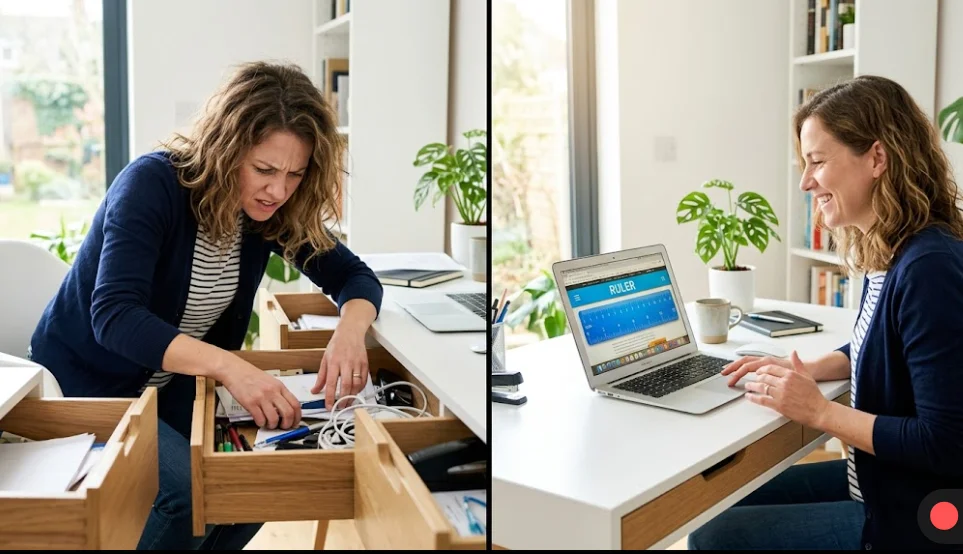
Have you ever needed to measure something urgently but couldn’t find a ruler anywhere? Maybe you were shopping online and wanted to check if a product would fit. Maybe your child needed help with math homework. Maybe you were working on a DIY project and needed exact measurements.
I have been there too. It is really headache.
Now imagine this situation when you open your laptop or phone. You visit a website. And suddenly your screen turns into a perfect ruler. You click anywhere and instantly get measurements in centimeters, millimeters, and inches. No downloads. No installations. No signups. Completely free.
That is exactly what an online ruler does.
I will teach you everything about this online rulers. How they work. How to use them. How to get perfect accuracy. And how to solve any problem you might face.This is not a technical document full of jargon. This is a practical guide written in simple English. Anyone can understand and follow along.
What is an Online Ruler?
The online ruler is a website that displays a ruler on your screen. But this is not just a picture of a ruler. It is an interactive tool. When you click on any point of this ruler, the tool tells you exactly how far that point is from the start of the ruler.
You get three measurements instantly:
- Centimeters (CM)
- Millimeters (MM)
- Inches (IN)
Here is the science behind it.
Every screen has something called PPI and PPI stands for Pixels Per Inch. It tells you how many tiny dots of light (pixels) fit into one physical inch on your screen. A 13-inch laptop screen has fewer pixels per inch than a 27-inch desktop monitor? Actually, it depends on resolution. But the key point is that every screen is different.
The online ruler automatically detects your screen’s PPI. It uses this information to draw the ruler at the correct physical size. If your screen has a standard PPI of 96, the ruler will be accurate out of the box. If your screen is different, you can calibrate easily.
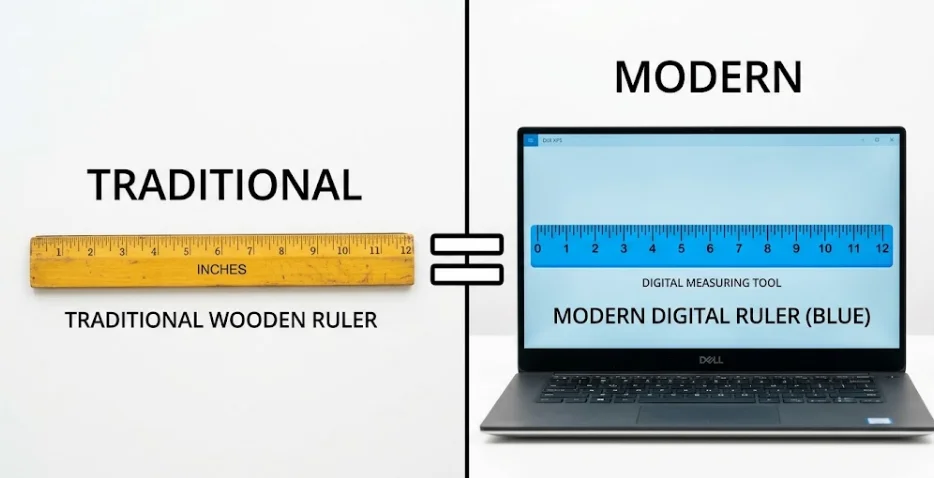
Think of it this way. A physical ruler is made of wood or plastic. An online ruler is made of pixels. But both do the same job. They measure length.
Key Features of This Online Ruler Tool
This tool comes with advance features that most other online rulers simply do not have. That is what makes it special for all your measuring needs.
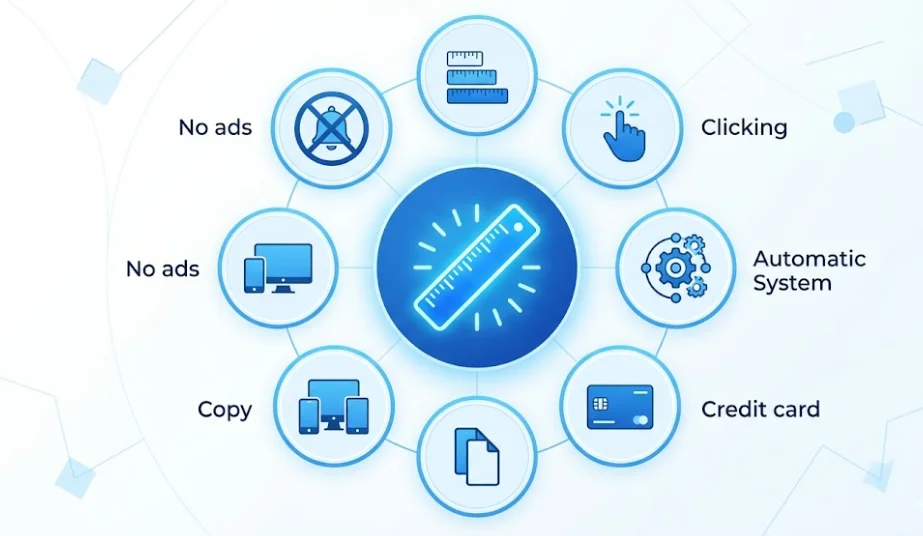
Feature 1: Three Rulers in One Place
You don’t need to switch between different tools. Everything is on one screen.
- Centimeter Ruler: Measures from 0 to 30 cm
- Millimeter Ruler: Measures from 0 to 300 mm
- Inch Ruler: Measures from 0 to 12 inches
You can view all three together. Or you can view just one. Or any combination. The choice is yours.
Feature 2: One-Click Measurement
This is the main feature. Click anywhere on any ruler. A blue vertical line appears exactly where you clicked. Below the ruler, three numbers appear instantly. No waiting. No loading. No calculation needed.
Feature 3: Auto PPI Detection
When you open the tool, it automatically detects your screen’s PPI. Most screens work perfectly with this automatic detection. You don’t need to do anything.
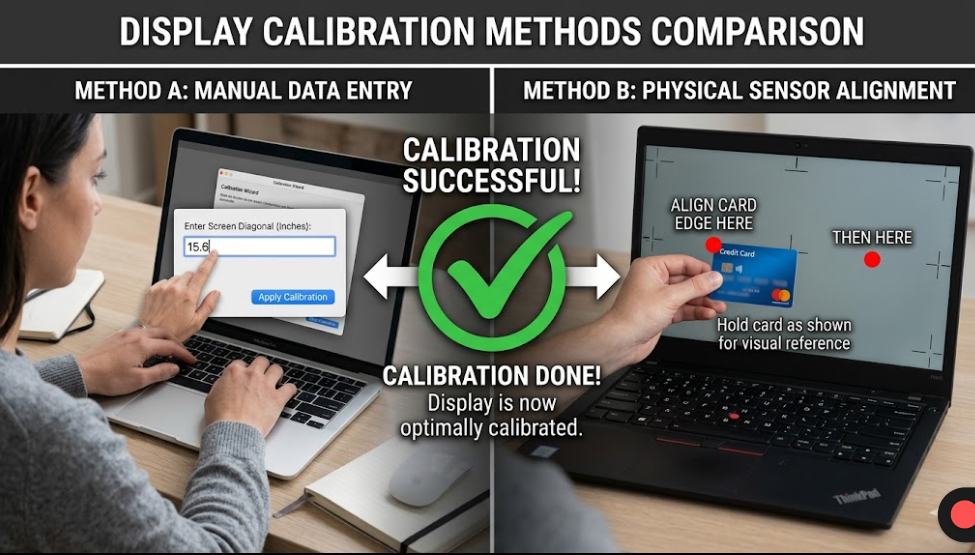
Feature 4: Two Powerful Calibration Methods
For perfect accuracy, you can calibrate the tool.
- Method 1 – Screen Size Calibration: Type your screen diagonal size in inches. Click Apply. Done.
- Method 2 – Credit Card Calibration: Place any credit card on your screen. Click left edge. Click right edge. The tool calculates everything automatically.
Feature 5: One-Click Copy
After measuring, click the Copy button. All three measurements are copied to your clipboard. You can paste them anywhere. An email. A document. A chat message.
Feature 6: Works on Every Device
This tool works on:
- Windows laptops and desktops
- MacBooks and iMacs
- iPhones and iPads
- Android phones and tablets
- Linux computers
- Chromebooks
Basically, any device with a screen and a browser.
Feature 7: No Ads, No Popups, No Distractions
Many free tools are full of annoying advertisements. Not this one. Clean interface. Only what you need. Nothing you don’t.
How to Use the Online Ruler (Step by Step)
Follow these steps. I promise it is very easy to use you just need to concentrate on steps.
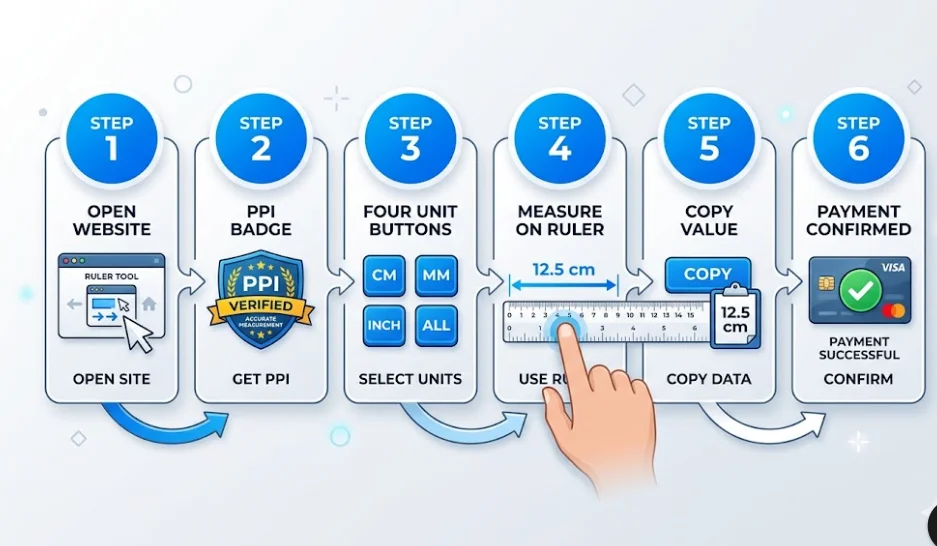
Step 1: Open the Tool
Go to the online ruler webpage. That is it. No downloads. No installations. Just open the page.
Step 2: Check the PPI Display
At the top of the tool, you will see a badge. It might say “96 PPI” or “110 PPI” or something similar. This shows your current accuracy. Don’t worry too much about this number. Just know it exists.
Step 3: Choose Your View
Look at the buttons below the header. You will see:
- CM – Shows only centimeter ruler
- MM – Shows only millimeter ruler
- INCH – Shows only inch ruler
- ALL – Shows all three rulers
I recommend clicking ALL when you first start. This way you can see everything at once.
Step 4: Click to Measure
Simply click on any point on the ruler. Instantly, a blue vertical line will mark your spot, and the exact measurements in CM, MM, and Inches will appear below. No waiting, no lag.
Step 5: Copy Your Measurement (Optional)
Need to save or share your measurement? Click the “Copy” button below the measurement display. The tool copies all three values to your clipboard. Now you can paste anywhere.
Step 6: Calibrate (Do This Once)
For the best accuracy, calibrate the tool when you first use it. Use the credit card method. It takes 30 seconds. After calibration, the ruler will match a physical ruler perfectly.
Calibration Guide for Perfect Accuracy
Calibration is the process of telling the tool exactly how big your screen is. When the tool knows your screen’s true size, it can draw the ruler perfectly.
Think of it like this. If I ask you to draw a 10 cm line on a piece of paper, you need to know how big 10 cm is. You use a ruler. Similarly, the online ruler needs to know how many pixels equal one inch on your specific screen.
There are two ways to calibrate. Both are easy.
Method 1: Screen Size Calibration (Easy)
This method requires one number. Your screen’s diagonal size in inches.
Step by step instructions:
- Find your screen size. Look at the box your device came in. Or search online for your device model. Or measure the diagonal of your screen with a physical ruler.
- Type that number into the input box. For example, type “15.6” for a typical laptop.
- Click the blue “Apply” button.
- Done. Your ruler is now calibrated.
Common screen sizes for reference:
| Device Type | Common Sizes (inches) |
|---|---|
| Small laptop | 11.6, 12.5, 13.3 |
| Standard laptop | 14, 15.6 |
| Large laptop | 17.3 |
| Desktop monitor | 19, 21.5, 24, 27, 32 |
| Smartphone | 5.8, 6.1, 6.7 |
Method 2: Credit Card Calibration (Most Accurate)
This method is my favorite. It is incredibly accurate because it uses a real physical object of known size. Every credit card, debit card, and most ID cards have the same width: 85.6 millimeters (8.56 centimeters).
Step by step instructions:
- Click the “Credit Card” button on the tool. A popup window will appear with instructions. Close this window by clicking Cancel or outside the popup.
- Take your credit card. Hold it against your screen.
- Align the left edge of the credit card with the left edge of the centimeter ruler on your screen.
- Click exactly on the left edge of the credit card. The tool registers this point.
- Now click exactly on the right edge of the credit card. The tool registers this point too.
- The tool calculates the distance between your two clicks. Since it knows the card is exactly 8.56 cm wide, it can calculate your screen’s exact PPI.
- You will see a success message. Your ruler is now perfectly calibrated.
Pro tip: If you don’t have a credit card, any card of standard size works. Debit card. Library card. Membership card. They all follow the same ISO standard size.
Understanding CM, MM, and Inches
Let me help you understand the three measurement units. This knowledge will make you more confident when using the tool.
Centimeters (CM)
A centimeter is a unit of length in the metric system. The metric system is used by almost every country in the world except the United States, Liberia, and Myanmar.
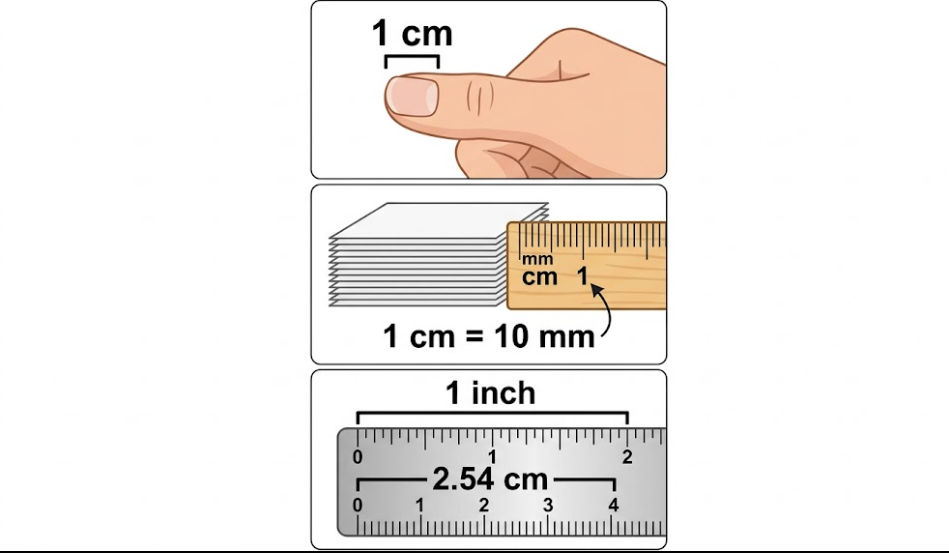
How big is 1 centimeter?
About the width of an average adult’s fingernail. Not the whole finger. Just the nail.
Common things measured in centimeters:
| Object | Typical Size |
|---|---|
| Credit card width | 8.56 cm |
| Standard pencil | 19 cm |
| Smartphone height | 14-16 cm |
| Aadhar card / ID card | 8.6 cm |
| Business card | 9 cm |
Millimeters (MM)
A millimeter is even smaller. There are 10 millimeters in 1 centimeter.
How big is 1 millimeter?
About the thickness of a credit card. Yes, a credit card is about 0.76 mm thick. So 1 mm is slightly thicker than a card.
Common things measured in millimeters:
| Object | Typical Size |
|---|---|
| Credit card thickness | 0.76 mm |
| Paper thickness | 0.1 mm |
| SIM card width | 15 mm |
| Pencil lead diameter | 0.5 mm, 0.7 mm |
Inches (IN)
An inch is a unit of length in the imperial system. This system is mainly used in the United States, Canada, and the United Kingdom.
How big is 1 inch?
Exactly 2.54 centimeters. Think of the length from the tip of your thumb to the first knuckle. For most people, this is about 1 inch.
Common things measured in inches:
| Object | Typical Size |
|---|---|
| Smartphone screen | 5.8 to 6.9 inches |
| Laptop screen | 13 to 17 inches |
| Standard ruler | 12 inches |
| Pizza | 12 inches |
| Letter paper width | 8.5 inches |
Quick Conversion Reference
Here is a handy conversion table:
| If you know | Multiply by | To get |
|---|---|---|
| Centimeters | 10 | Millimeters |
| Millimeters | 0.1 | Centimeters |
| Centimeters | 0.3937 | Inches |
| Inches | 2.54 | Centimeters |
| Inches | 25.4 | Millimeters |
But honestly? You don’t need to memorize any of this. The online ruler does all conversions for you automatically. One click gives you all three units.
Practical Use Cases (Real Life Examples)
Let me share real situations where an online ruler can save your day.
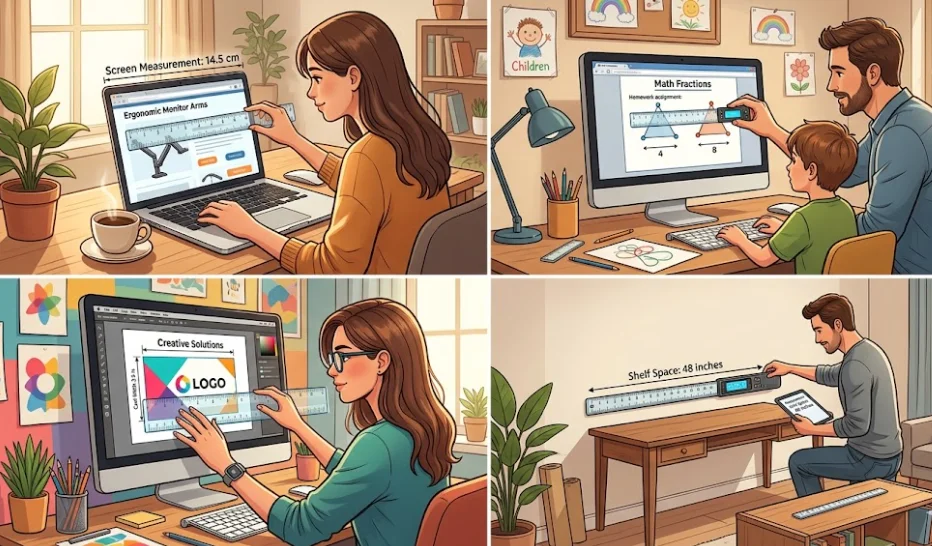
Use Case 1: Online Shopping
You are browsing Amazon or any online store. You find a beautiful picture frame. The listing says it is 40 cm wide. But you are not sure if it will fit on your wall.
What do you do?
Open the online ruler. Measure the space on your wall directly on your screen. If your wall has 40 cm of empty space, the frame will fit. Order with confidence.
Real example: A customer wanted to buy a shelf for their desk. They measured their desk width using the online ruler. The shelf listing said 60 cm. Their desk had 65 cm. Perfect fit.
Use Case 2: Kids’ Homework Help
Your child has math homework. The worksheet asks them to measure lines in centimeters. But you cannot find the ruler anywhere. It is 10 PM. All stores are closed.
What do you do?
Open the online ruler on your computer. Let your child place the worksheet against the screen. They can click on each line and get the measurement instantly.
Real example: A parent used this tool to help their child complete a measurement worksheet in 10 minutes. The assignment would have taken an hour without a ruler.
Use Case 3: Work From Home
Your company sent you a new laptop. You need to buy a protective sleeve. But you don’t know the laptop’s exact dimensions.
What do you do?
Open the online ruler. Measure your laptop’s width and height directly on the screen. Write down the numbers. Order the perfect fitting sleeve online.
Real example: A remote worker used this tool to measure their 15.6 inch laptop. They ordered a sleeve that fit perfectly. No returns needed.
Use Case 4: DIY and Crafts
You are making a scrapbook. You need to cut paper into specific sizes. Your physical ruler is somewhere in the messy craft room.
What do you do?
Open the online ruler on your tablet or phone. Place the paper against the screen. Mark the cutting line. Cut. Perfect.
Real example: A crafter used this tool to cut paper for greeting cards. They made 50 cards without ever using a physical ruler.
Use Case 5: Graphic Design
You are designing a business card. The design looks great on screen. But you are not sure if the text is too small for printing.
What do you do?
Open the online ruler. Measure the text size directly on your screen. Compare it to a real business card. Adjust your design until the sizes match.
Real example: A designer used this tool to check font sizes. They discovered the contact information was too small. They increased the font size before printing. Saved thousands of dollars in reprints.
Use Case 6: Home Improvement
You are hanging pictures on a wall. You want them to be evenly spaced. But you don’t have a long ruler.
What do you do?
Open the online ruler on your laptop. Place the laptop near the wall. Measure distances between picture frames. Mark the spots. Hang the pictures.
Real example: A homeowner used this tool to hang a gallery wall with 9 pictures. All frames were perfectly aligned and evenly spaced.
Use Case 7: Selling Items Online
You are selling an item on eBay or Facebook Marketplace. Buyers keep asking for exact dimensions. You don’t have a ruler handy.
What do you do?
Open the online ruler. Measure the item. Take a screenshot showing the measurement. Send it to the buyer. They trust the measurement because they see it.
Real example: A seller used this tool to measure a vintage lamp. The buyer was satisfied with the screenshot measurement. The sale completed successfully.
Tips for Most Accurate Measurements
Listen carefully. These tips come from professional use. Follow them for perfect results.
Tip 1: Calibrate Before First Use
Do not skip calibration. It takes 30 seconds. Use the credit card method for best results. Once calibrated, the tool remembers your settings.
Tip 2: Set Browser Zoom to 100%
This is very important. If your browser zoom is not at 100%, the ruler will be wrong.
How to check:
- On Windows: Press Ctrl and 0 (zero) at the same time
- On Mac: Press Cmd and 0 (zero) at the same time
- On mobile: Look for zoom settings in your browser menu
Tip 3: Look Straight at Your Screen
Angle matters more than you think. If you look from the side, the measurement will look different. Always sit directly in front of your screen. Your eyes should be level with the center of the screen.
Tip 4: Clean Your Screen
Dust and fingerprints can confuse your eyes. You might misalign your clicks. Wipe your screen gently with a soft, dry cloth before measuring.
Tip 5: Test Your Calibration
After calibrating, test the accuracy. Take a credit card. Place it against the screen. The online ruler should show exactly 8.56 cm. If it doesn’t, calibrate again.
Tip 6: Refresh After Display Changes
If you connect an external monitor, change screen resolution, or adjust display scaling, refresh the page. The tool needs to re-detect your screen settings.
Tip 7: Use a Mouse for Desktop
If you are on a desktop computer, use a mouse instead of a trackpad. Mice give you more precise control. Your clicks will be more accurate.
Tip 8: Take Your Time
Don’t rush. Position your cursor carefully before clicking. A single pixel can make a difference of 0.1 mm on high-resolution screens.
Tip 9: Use the Right Ruler for the Job
- For objects between 1-30 cm, use CM ruler
- For very small objects under 3 cm, use MM ruler
- For objects over 12 inches, use INCH ruler or take multiple measurements
Tip 10: Multiple Measurements for Long Objects
Need to measure something longer than 30 cm? Do this:
- Measure the first 30 cm. Make a mental note or mark.
- Move the object so the marked point aligns with the start.
- Measure the remaining length.
- Add both measurements together.
Troubleshooting Common Problems
Problems happen. Don’t worry. Here are solutions.
Problem 1: Ruler Shows Wrong Size
- Symptoms: The online ruler does not match a physical ruler or credit card.
- Solution: Your screen needs calibration. Use the credit card calibration method. It takes 30 seconds and solves the problem completely.
- Why this happens: Your screen needs calibration. Use the Credit Card method (takes 30 seconds). This usually occurs because your device has a unique screen resolution that the auto-detector missed.
Problem 2: Click Does Nothing
Symptoms: You click on the ruler but no blue line appears and no measurements show.
- Solution 1: Check if JavaScript is enabled in your browser. The tool needs JavaScript to work.
- Solution 2: Refresh the page and try again.
- Solution 3: Try a different browser (Chrome, Firefox, Safari, Edge).
Why this happens: Your browser might have strict security settings, or there might be a temporary glitch.
Problem 3: Numbers Look Blurry
Symptoms: The ruler text and numbers are fuzzy or hard to read.
Solution: Set your browser zoom to exactly 100%. Press Ctrl+0 (Windows) or Cmd+0 (Mac). The text will become crisp again.
Why this happens: Browser zoom creates pixel scaling that makes text blurry.
Problem 4: Screen Too Small for Full Ruler
Symptoms: The ruler extends beyond your screen. You cannot see the end.
- Solution 1: Use the horizontal scroll bar to see the rest of the ruler.
- Solution 2: Switch from ALL view to a single unit (CM only or INCH only).
- Solution 3: Temporarily zoom out to 90% in your browser.
- Solution 4: On mobile, rotate your phone to landscape mode.
Why this happens: Some screens are physically narrow. The 30 cm ruler needs 30 cm of physical space.
Problem 5: Ruler Disappears on Mobile
- Symptoms: The ruler shows briefly then disappears or looks tiny.
- Solution: Rotate your phone to landscape (horizontal) mode. The tool automatically adjusts. Refresh the page after rotating.
- Why this happens: Many phones are taller than they are wide. Portrait mode doesn’t provide enough width.
Problem 6: PPI Number Looks Crazy
- Symptoms: The PPI display shows a very high number (like 300+) or very low number (like 30).
- Solution: Your screen might have unusual resolution scaling. Use manual calibration with the credit card method. This overrides the automatic detection.
- Why this happens: Some Windows laptops have display scaling set to 125% or 150%. This confuses automatic PPI detection.
Problem 7: Measurements Jump Around
Symptoms: You click the same point twice but get different measurements.
Solution: You might be clicking near the edge of two different ticks. Zoom in on your browser to 150% temporarily. This makes the ruler larger and easier to click precisely.
Why this happens: High-resolution screens have many pixels packed tightly. Small finger or mouse movements can land on different pixels.
Problem 8: Copy Button Not Working
Symptoms: You click Copy but nothing happens.
- Solution 1: Try clicking Copy again.
- Solution 2: Manually select the measurement numbers and press Ctrl+C (Windows) or Cmd+C (Mac).
- Solution 3: Check your browser permissions. Some browsers block clipboard access.
- Why this happens: Some browsers have stricter clipboard security than others.
Comparison: Online Ruler vs Other Measuring Tools
Let me compare the online ruler with other options. This will help you choose the right tool for each situation.
Online Ruler vs Physical Ruler
| Aspect | Online Ruler | Physical Ruler |
|---|---|---|
| Availability | Always on your phone/laptop | Gets lost, forgotten at home |
| Accuracy | 99.9% with calibration | 100% |
| Cost | Free | $1 to $10 |
| Weight | Zero (digital) | 10-50 grams |
| Durability | Never wears out | Can break, marks fade |
| Multiple units | Shows all three at once | Requires flipping or multiple rulers |
| Measure digital objects | Yes, directly on screen | No, cannot touch screen |
| Portability | Built into device you carry | Must remember to bring |
Winner for everyday use: Online Ruler
Online Ruler vs Measuring Tape
| Aspect | Online Ruler | Measuring Tape |
|---|---|---|
| Maximum length | 30 cm (12 inches) | 3-10 meters |
| Curved surfaces | Cannot measure | Can measure |
| Small objects | Excellent (clear marks) | Difficult (marks are tiny) |
| Digital objects | Yes | No |
| Storage | No storage needed | Takes drawer space |
Winner for long or curved objects: Measuring Tape
Winner for small or digital objects: Online Ruler
Online Ruler vs Camera Measuring Apps
| Aspect | Online Ruler | Camera Apps |
|---|---|---|
| Accuracy | 99.9% with calibration | 70-80% (camera distance issues) |
| Ease of use | One click | Point, focus, sometimes calibrate |
| Download needed | No | Yes, must install app |
| Internet needed | Initial load only | Often requires internet |
| Privacy | No permissions needed | Needs camera access |
| Works in low light | Yes | No (needs good lighting) |
Winner: Online Ruler
Online Ruler vs Browser Extensions
| Aspect | Online Ruler | Browser Extensions |
|---|---|---|
| Installation | None | Must install extension |
| Browser compatibility | All browsers | Only specific browsers |
| Updates | Automatic | Manual |
| Security | No permissions | Often needs many permissions |
| Mobile support | Yes | Usually no |
Frequently Asked Questions (FAQs)
Here are answers to the most common questions people ask.
Is an online ruler really accurate?
Yes, very accurate. With calibration using the credit card method, accuracy is 99.9%. This matches physical rulers for all practical purposes. Without calibration, accuracy is about 95% for most screens.
Can I use this on my phone?
Yes. The tool works on iPhones, Android phones, iPads, and all tablets. For best experience, rotate your phone to landscape mode. This gives more width for the ruler.
Do I need to download anything?
No downloads. No installations. No apps. Just open the website in your browser. That is all.
Is it really free?
Yes. Completely free. No hidden charges. No subscription fees. No credit card required. No signup. No email address needed.
What is the maximum length I can measure?
The ruler shows up to 30 centimeters (300 millimeters) or 12 inches. For longer objects, take multiple measurements. Measure 30 cm, make a mark, move the object, measure the next 30 cm, add the numbers.
Why does the ruler look different on different screens?
Different screens have different pixel densities. A 4K screen has many more pixels than an HD screen. The online ruler adjusts automatically. It draws the correct number of pixels for each unit of measurement based on your screen’s PPI.
Can I print the ruler?
I do not recommend printing. The ruler is designed for on-screen use. When you print, the size changes based on your printer settings. For accurate printed rulers, use a tool specifically designed for printing.
Does it work with external monitors?
Yes. The tool works on any screen. However, if you move the browser window from one monitor to another, refresh the page. Different monitors can have different PPI values.
What is PPI?
PPI stands for Pixels Per Inch. It tells you how many pixels fit into one physical inch on your screen. The online ruler uses your screen’s PPI to draw the ruler at the correct size.
How often should I calibrate?
Calibrate once when you first use the tool. The calibration stays until you close your browser. If you use the same device regularly, you might not need to calibrate again. If you switch to a different screen or change resolution, calibrate again.
Can I measure something that is not on my screen?
Yes. You can place physical objects against your screen. For example, you can place a piece of paper on your laptop screen. The ruler will measure the paper. Just be gentle. Do not scratch your screen.
What if I don’t have a credit card for calibration?
You can use the screen size method instead. Just type your screen’s diagonal size in inches. Or use any standard ID card. Most ID cards follow the same ISO size as credit cards (85.6 mm wide).
Does this tool work on Mac?
Yes. Works perfectly on all Macs. MacBooks, iMacs, Mac Minis with any display. Safari, Chrome, Firefox, all browsers work.
Does this tool work on Linux?
Yes. Works on Ubuntu, Fedora, Mint, and all Linux distributions. Any modern browser works.
Can I use this tool offline?
You need internet to load the page initially. Once loaded, the tool works offline because all calculations happen in your browser. But I recommend keeping internet connection for best experience.
Pro Tips from Experts
These tips come from people who use online rulers daily for their work.
Pro Tip 1: Save Your PPI Value
After calibration, note down your screen’s PPI number. Write it on a sticky note or save it in a note app. Next time you use the tool on the same screen, you can quickly verify if calibration is still correct.
Pro Tip 2: Use Keyboard Shortcuts
Learn these shortcuts for faster work:
- Ctrl+0 (Windows) / Cmd+0 (Mac): Reset zoom to 100%
- Ctrl+C (Windows) / Cmd+C (Mac): Copy (after clicking Copy button)
- F5 or Ctrl+R: Refresh page
Pro Tip 3: Take Screenshots for Records
Need to save a measurement for later? Take a screenshot after clicking. The screenshot will show the blue marker and the measurement values. This is perfect for work records or sharing with colleagues.
How to screenshot:
- Windows: Press Windows key + Shift + S
- Mac: Press Shift + Cmd + 4
- Most phones: Press Power + Volume down
Pro Tip 4: Use Multiple Monitors Strategically
If you have two monitors, use one for the online ruler and one for your work. Keep the ruler open on the second monitor. This way you can measure things on the first monitor without switching tabs.
Pro Tip 5: Measure in Good Lighting
Good lighting helps you see the screen clearly. Natural daylight is best. If working at night, use a desk lamp that illuminates your screen evenly without creating glare.
Pro Tip 6: Keep the Tool Bookmarked
Bookmark the online ruler page in your browser. Put it in your bookmarks bar. This way you can open it with one click. No typing needed.
Pro Tip 7: Share with Colleagues
If you find the tool useful, share it with coworkers. Many people don’t know online rulers exist. They will thank you for saving them time and frustration.
Final words about this tool
An online ruler is a free, accurate, and convenient measuring tool. It turns your computer screen, laptop, or phone into a precise measuring device. You can measure anything in centimeters, millimeters, and inches with just one click.
The tool works out of the box. But for perfect accuracy, calibrate using the credit card method. It takes 30 seconds and ensures your measurements match a physical ruler exactly.
Use the online ruler for:
- Online shopping size checks
- Kids’ homework help
- DIY and craft projects
- Graphic design work
- Home improvement
- Selling items online
Remember these key tips:
- Keep browser zoom at 100%
- Look straight at your screen
- Calibrate before first use
- Test with a credit card
- Refresh after changing displays
The best part? You always have this tool with you. Your phone is in your pocket. Your laptop is in your bag. Whenever a measuring need arises, you are ready.So go ahead. Open the online ruler. Click on it. See how easy it is. Share it with friends and family who might also find it useful.
Thank you for reading this complete guide. I hope it helped you understand online rulers better. If you have any other questions, the tool itself has all the answers. Just click and measure.
Happy measuring.
Bookmark this page now. You never know when you will need to measure something unexpectedly. And when that moment comes, you will be ready.