🖥️ Screen Ruler
Drag to measure anything on screen — pixels, cm, mm & inches
💳 Credit Card Calibration
Place a standard credit/debit card flat against your screen, then measure its width using Line mode.
Need to measure something on your screen without any app or download? The Screen Ruler by OnlineRuler.online lets you measure any distance directly on your screen in pixels, centimeters, millimeters, or inches. Whether you’re a designer checking element sizes, a developer measuring UI spacing, or just someone curious about real-world dimensions on screen, this free tool has you covered. No installation, no signup just open and measure.
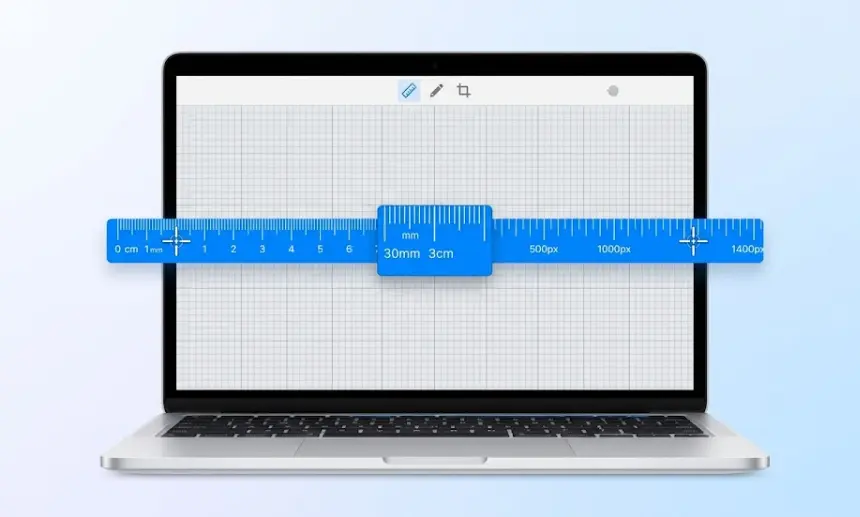
The Screen Ruler is part of the free toolkit at OnlineRuler.online a collection of browser-based measurement tools built for speed and accuracy. No clutter, no ads blocking your work, no app to install. Just a clean, reliable ruler on your screen, ready whenever you need it.
How It Works (Short Steps):
Step 1 — Calibrate Your Screen Enter your screen’s diagonal size in inches (e.g. 15.6″) and click Apply. Or place a credit card against the screen and use the Credit Card calibration mode for automatic, precise PPI detection.
Step 2 — Choose a Measurement Mode Pick from three modes:
- 📏 Line — drag from point A to point B to measure any straight distance
- ⬜ Rect — drag to measure width and height of any rectangular area
- 📐 Angle — click three points to calculate the angle between two lines
Step 3 — Read Your Measurements Instantly see your measurement in pixels, centimeters, millimeters, and inches — all at once, in real time.
Step 4 — Save or Copy Hit Save to store a measurement for reference, or Copy to paste it anywhere.
Key Features:
- Measure in PX, CM, MM, and Inches simultaneously
- Three measurement modes: Line, Rectangle, and Angle
- Credit card calibration for accurate real-world measurements
- Enter your screen diagonal for precise PPI (pixels per inch) calculation
- Fullscreen mode for distraction-free measuring
- Save multiple measurements and clear them anytime
- Works on desktop and mobile — no download needed
- Touch-friendly for tablet use
Who Is This Tool For?
- Graphic Designers: Check spacing, icon sizes, and layout dimensions on screen
- UI/UX Designers: Verify pixel-perfect measurements in mockups and prototypes
- Web Developers: Measure element widths and gaps without developer tools
- Students & Teachers: Learn about screen resolution and PPI in a hands-on way
- Photographers & Printers: Convert pixel sizes to real-world cm/mm/inch values
- General Users: Quickly measure anything visible on your screen
What Is PPI and Why Does It Matter?
PPI stands for Pixels Per Inch it tells you how many pixels fit inside one inch of your screen. A higher PPI means sharper, crisper images. This tool auto-detects your screen resolution and, once you enter your screen size, calculates exact PPI so every measurement is physically accurate not just a pixel count.
FAQ
Yes, completely free. No account or download required.
Accuracy depends on correct screen calibration. For best results, enter your exact screen diagonal or use the credit card method.
Yes. The canvas supports touch input, so you can drag and measure on phones and tablets too.
Yes, switch to Angle mode and click three points. The tool calculates the angle at the middle point automatically.
Pixels (px), Centimeters (cm), Millimeters (mm), and Inches (in) — all shown at the same time