What is PPI? Why Your Online Ruler Might Show Wrong Measurements (And the 30-Second Fix)
You opened an online ruler on your screen, held up something you know is exactly 10 cm, and the ruler showed 11 cm. Or 9.5. Something was off. So what happened?
The answer is PPI – pixels per inch. It is the single most misunderstood factor behind online ruler accuracy, and most people have no idea it even exists. This guide explains what PPI actually means, why it varies so much between screens, and exactly what to do so your online measurements are reliable.
No technical background required. By the end of this post you will understand PPI better than most people who work in tech.
What PPI Actually Means
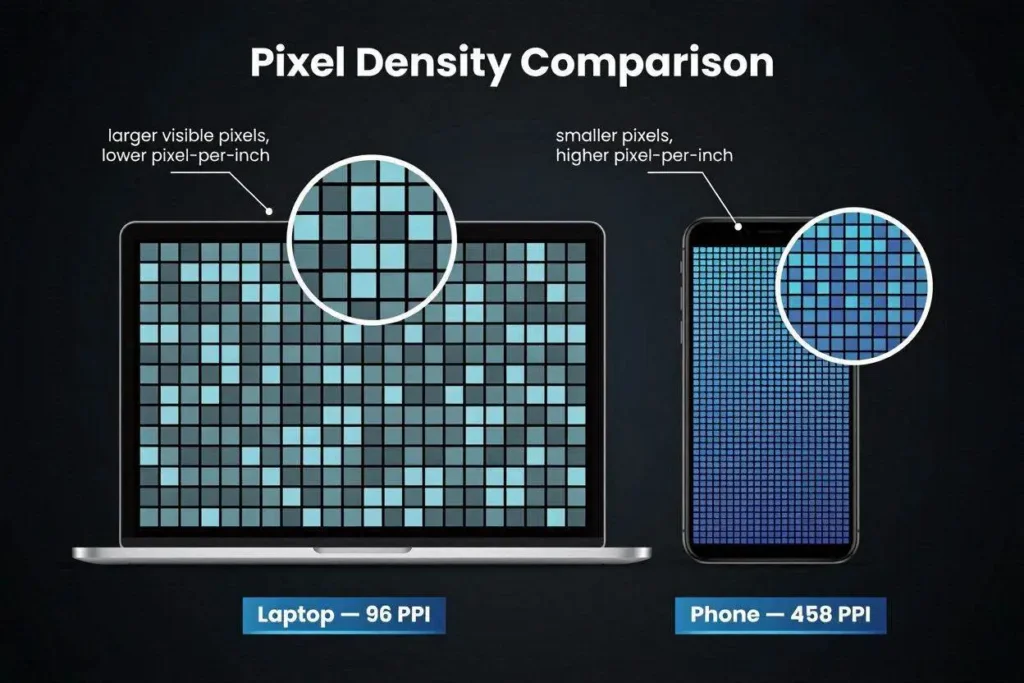
PPI stands for Pixels Per Inch. It tells you how many individual pixels are packed into each inch of your screen’s display area.
Think of it this way: imagine your screen is a piece of graph paper. Each small square is one pixel. PPI tells you how many of those squares fit in a one-inch line across the paper.
A screen with 96 PPI has 96 pixels in every inch. A screen with 458 PPI – like newer iPhones – has 458 pixels in that same inch. The 458-PPI screen looks sharper because each pixel is physically smaller, so the image looks smoother and more detailed.
Why PPI Matters for Online Rulers
Here is the core problem. When a website draws a ruler on your screen, it does not magically know how big your screen’s pixels are. It knows how many pixels to draw – but how large those pixels appear in the real world depends entirely on your screen’s PPI.
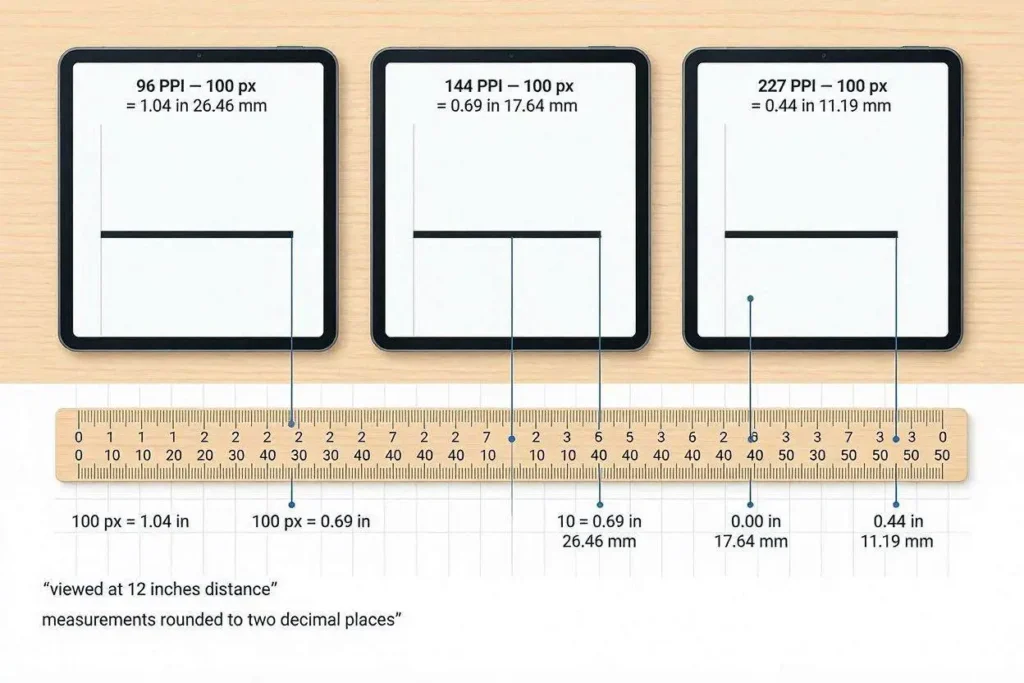
A line that is 96 pixels long will be exactly 1 inch on a 96-PPI screen. But on a 144-PPI screen, that same 96-pixel line is only 0.67 inches. On a 227-PPI screen (like many modern laptops), it is only 0.42 inches.
This is why online rulers fail without PPI calibration. They draw the right number of pixels but those pixels end up physically too small or too large depending on your screen.
How PPI Is Calculated
The formula is straightforward. PPI = diagonal resolution in pixels divided by the screen diagonal in inches.
- Step 1: Find your screen’s resolution (for example, 1920 x 1080 pixels).
- Step 2: Calculate the diagonal resolution: square root of (1920² + 1080²) = square root of (3,686,400 + 1,166,400) = square root of 4,852,800 ≈ 2202 pixels diagonally.
- Step 3: Divide by screen diagonal in inches. For a 23-inch monitor: 2202 ÷ 23 ≈ 96 PPI.
Most people do not want to do this math. The good news is you do not have to.
The Screen Ruler detects your screen’s PPI automatically and calibrates the ruler to your actual display. If it cannot detect it automatically, it walks you through calibration in under 30 seconds using a credit card.
Common PPI Values by Device Type
Here is the information presented in a clear markdown table:
| Device Type | Typical PPI Range | Notes |
|---|---|---|
| Old desktop monitors (2010-2015) | 72 – 96 PPI | Low density – 1:1 with CSS pixels usually |
| Standard laptop screens | 96 – 130 PPI | Common on 15-inch FHD laptops |
| High-DPI / QHD laptop screens | 150 – 220 PPI | Common on modern 14-inch laptops |
| Apple Retina MacBook displays | 220 – 254 PPI | Retina-class density |
| Android flagships (1080p, 6-inch) | 360 – 400 PPI | Most Samsung Galaxy S series |
| iPhone 15 / 15 Pro | 460 – 460 PPI | Super Retina XDR display |
| 4K desktop monitors | 80 – 163 PPI | Depends heavily on screen size |
Notice how much variation there is. A standard 15-inch FHD laptop and a modern iPhone can differ by nearly 5x in pixel density. An online ruler designed for a 96-PPI screen would show measurements 5x too large on the phone – which is obviously unusable.
PPI vs DPI – They Are Not the Same
PPI (pixels per inch) describes screens. DPI (dots per inch) describes printers.
When you print a photo at 300 DPI, your printer puts 300 ink dots in every inch of the printed page. The resulting print looks sharp and detailed. The monitor you designed it on might be 96 PPI, 220 PPI, or anything else – it does not matter for the print quality.
The confusion happens because some software uses DPI to mean PPI interchangeably. In digital contexts – screens, websites, apps – always think PPI. In printing contexts, think DPI. The math is the same but the application is different.
How to Calibrate an Online Ruler Correctly
Most quality online rulers offer two calibration methods:
- Automatic detection – the ruler reads your device’s reported PPI from the browser and sets itself. This works most of the time, especially on phones.
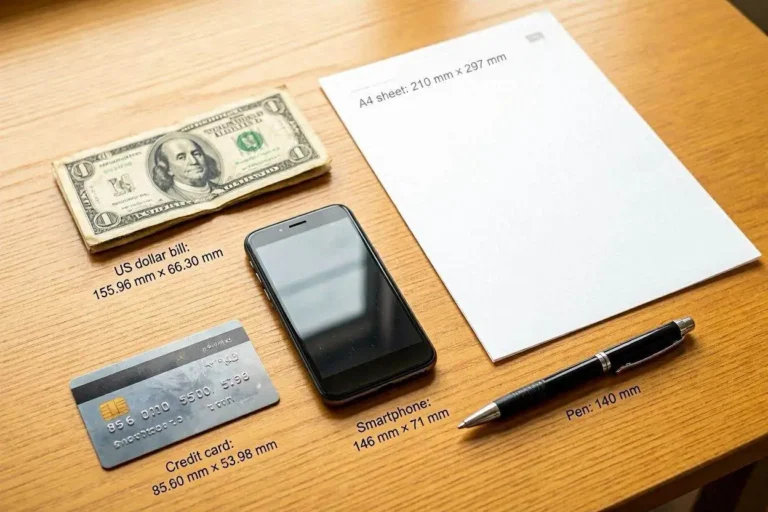
- Credit card calibration – you place your bank card on the screen and drag a slider until the on-screen measurement matches the card’s known physical width (54 mm). Since all bank cards are the same size globally, this is a reliable physical reference.
The Online Ruler at onlineruler.online uses credit card calibration to ensure accuracy on any screen. Once calibrated for your device, it stays accurate across all measurements in that session.
When Does PPI Accuracy Actually Matter?
- Measuring jewelry or small objects where 1-2mm difference is meaningful
- Checking if a product will fit in a specific space when you cannot measure the space physically
- Verifying dimensions of a document or image for printing
- Measuring ring or bracelet diameters for online ordering
For rough estimates – checking if a book fits on a shelf, measuring a general gap – perfect PPI calibration is less critical. For precision work, always calibrate first.
Frequently Asked Questions
Resolution alone (1080p = 1920×1080 pixels) does not tell you PPI. You also need the physical screen size in inches. Two screens can both be 1080p but have different PPI if one is 15 inches and the other is 24 inches.
Yes. PPI affects how sharp text and images appear, how much information fits on screen, and how graphics need to be scaled for correct display. Many apps and websites use DPR (device pixel ratio) – related to PPI – to serve the right resolution images for each screen.
Only if the ruler has already auto-detected your PPI correctly. Always verify by holding a known object (a credit card or ruler) against the screen and checking if the measurement matches. If it does not, recalibrate.
For display quality, yes – higher PPI means sharper visuals. But beyond around 300 PPI on a phone or 220 PPI on a laptop, the human eye at normal viewing distance cannot distinguish individual pixels anyway. The improvement becomes marginal.
If you want to measure your actual physical screen size accurately, the Screen Ruler at onlineruler.online detects your screen diagonal and PPI automatically. And if you want to convert measurements from pixels to real-world units, the Unit Converter handles all standard conversions instantly.